
Client Resource
Your Off-Site Website Backups
I maintain automatic backups of your website, but I don’t want those backups to be accessible only through me. My goal is to make sure you have a practical way to access your site files and backups independently if I were ever unavailable, incapacitated, or no longer able to assist.
I keep automatic backups of your website. They run on a regular schedule, and copies go off-site to a separate location. (If you are curious about the technical details of this, you can read more here.)
I keep a rolling set of backups, so in almost every scenario, if something goes wrong with your site, I can restore it quickly from those backups.
I've been using Updraft Plus for this purpose as my tool of choice for well over a decade. Updraft Plus has been so widely used for so many years, it's essentially an industry standard. I trust it, and I know how to use it.
But there's always the beer truck scenario.
Really, Dave? A Beer Truck?
Back in the day, in the late 80s and early 90s when I was in the corporate world, there was a guy named Dave in the IT department. He was a great guy and the company really relied on him. Dave occasionally talked about what would happen to systems and support if he got "hit by a beer truck." He wasn't expressing false self-importance. He was instead advocating for the long-term interests of the company.
A beer truck? I don't have similar aspirations, but I do want you to be prepared in case something happens to me.
Bottom line
If anything ever happens to me, you should be able to hand your backup files to any qualified WordPress developer and have them rebuild your site from the most recent backup.
Where your copy will live
I'd strongly recommend we set up a spot where your backup files land automatically — so you'll always have a copy you can access on your own. There are about a dozen options. If you want to suggest something not in this list, let me know and we'll make it work. To keep things simple, here are three excellent ones:
Other options include Dropbox (can be pricey), Amazon S3 or Azure (both technical), and plain old SFTP if you just happen to have a server lying around. (Rarer than you'd think, but it happens.)
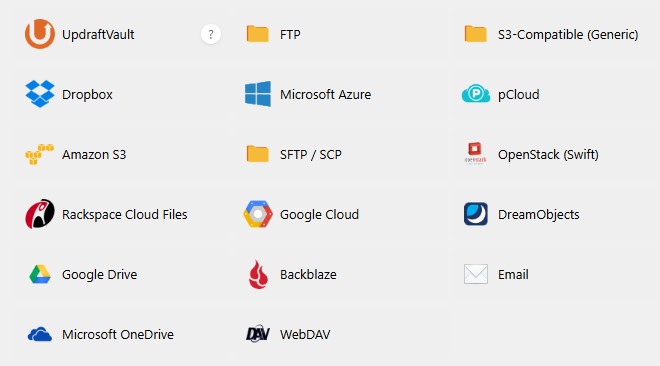
Whatever you choose initially can be changed later, so it's not worth stressing over. Just pick one and let me know and I'll take care of the setup.
What the backup contains
It's two pieces:
- The site files. Your WordPress theme, plugins, and media (images, PDFs, etc.)
- The database. All of your pages, posts, settings, and form data, and much more.
Together, these are a complete snapshot of your site at a moment in time. Any WordPress developer will know what to do with them.
How to access your backups
1
Open the cloud folder we have agreed upon for your backups
Whether this is Google Drive or Dropbox, OneDrive or BackBlaze, access should be easy but if you're not sure how to get there, reach out and I'll happily help.
2
Look for dated backup files inside
You'll see files named something like backup-2026-06-23.zip and backup-2026-06-23.sql.gz. Don't worry about opening or modifying them — just keep them safe.
3
That's it
You don't need to do anything with these files unless you ever need them. Just knowing where they are is the point.
If you ever need to use them
If you're working with a new WordPress developer, here's what to tell them:
What to say
"I have UpdraftPlus backup files for my WordPress site — a zip of the site files and a sql.gz of the database. Can you restore these to a new WordPress installation?"
Any WordPress developer worth hiring will know exactly what this means.
One thing to check
If I ever send you a new backup link, make sure you've got access to it before the old one changes. Worth checking in with me once a year or so to confirm your access is current.
All that said, this whole guide is "just in case" territory. I'm not sick, and I'm not about to retire. Day to day, your backups are handled automatically, and I'm keeping an eye on them. You don't need to do anything. But you do need to know where things are if you ever need them.
Questions about this? Let me know. I'm always happy to help.